Access Links and Magic Links
Once you have created a Question Plan, there are several ways to give walkers access to it. You can either copy an Access Link and share it yourself, or send a Magic Link directly to a recipient by email.
Both options allow the recipient to access the Question Plan and start their visits, but they differ in how access is shared and how long the link remains valid.
Access Links
An Access Link can be copied and shared directly with the person who needs to complete the walk.
To share an Access Link:
- Open the Question Plans tab.
- Find the Question Plan you want to share.
- Select Copy Access Link.
- Paste the link into an email, Teams message or other communication to the walker.
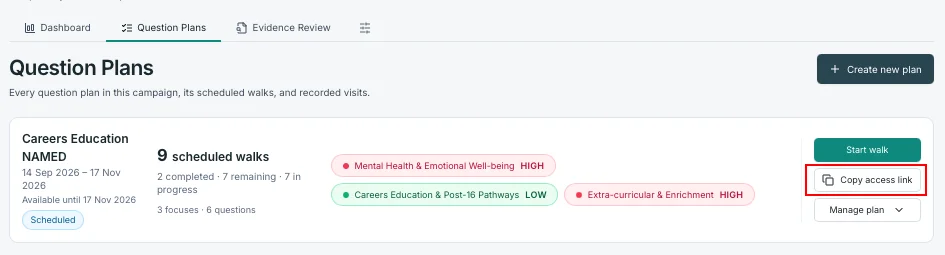
Access Links remain usable for the length of the campaign, making them useful when walkers may need to access the Question Plan at different points during the campaign.
How secure is an Access Link?
Access Links use the link validation method selected in your organisation's setup. This determines what the person receiving the link needs to provide before they can access the Question Plan.
The available validation methods range from anonymous access through to requiring an existing registered account. These include:
- Anonymous – no identity details are collected.
- Name – the visitor enters their first and last name.
- Email – the visitor provides an email address.
- Domain email – the email address must match an accepted domain.
- Verified email – the visitor confirms their email address using a one-time code.
- Verified school email – Recommended – the visitor uses an approved school or trusted email address and confirms it using a one-time code.
- Registered user – the visitor signs in using an existing account.
We recommend Verified school email as the default option, as it provides a balance between straightforward access and verification that the visitor is using an approved school or trusted email address.
The default validation method is configured in the organisation setup area under Default Question Plan Link Validation. This setting applies to new Access Links by default. To apply the selected validation method to Access Links that have already been created, tick Also apply this to Access Links already created.
Magic Links
You can also send access directly to a specific person using a Magic Link.
To send a Magic Link:
- Open the Question Plans tab.
- Select the Expand icon in the Manage Plan button.
- Select Magic Links.
- Enter the recipient's email address.
- Set a Valid Until date.
- Send the Magic Link.
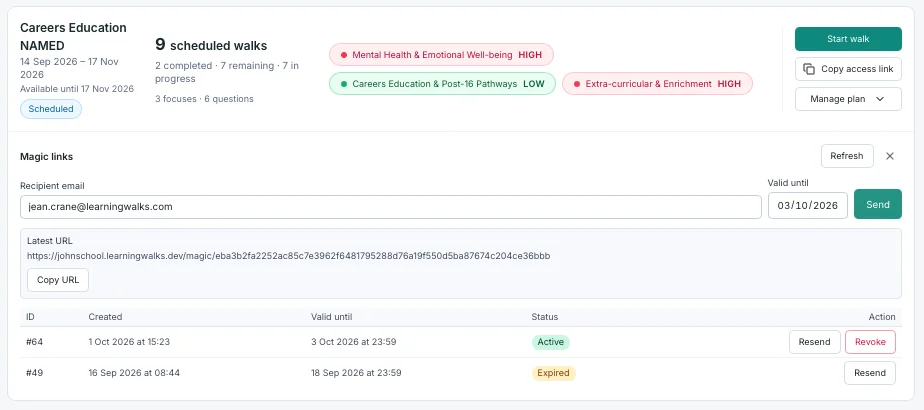
The recipient will receive an email containing a link to access the Question Plan.
Magic Links have an expiry date
The main difference between a Magic Link and a standard Access Link is how long the link remains available.
- Access Link: remains usable for the length of the campaign.
- Magic Link: has an expiry date that you choose when creating the link.
For example, if someone needs to complete a walk within the next week, you could set the Magic Link to remain valid for seven days.
This makes Magic Links useful when you want to give an individual walker access for a specific period of time, rather than sharing a link that remains available throughout the campaign.
Which should I use?
Both options provide a way to give walkers access to your Question Plans. The best option depends on how you want to distribute and manage that access: