Campaign Creation - 5 - Review and Launch (V2)
The final stage of Campaign creation is Review Your Campaign, where you can check your settings, review your Question Plans and choose how submitted evidence will be handled before launching.
This is your opportunity to make any final adjustments and ensure your Campaign is ready to begin.
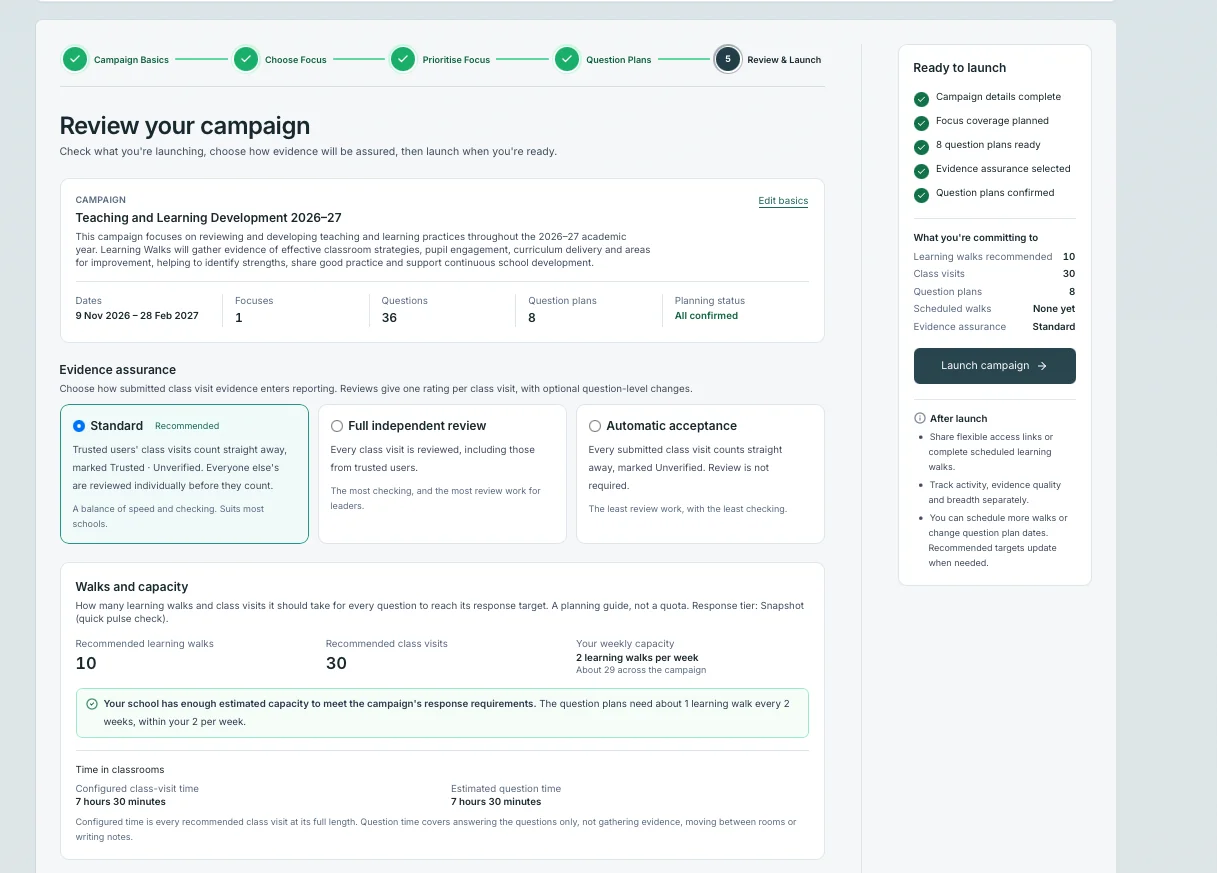
Review your Campaign details
At the top of the page, you'll see a summary of your Campaign, including:
- Campaign details: Name, description and dates.
- Focuses and questions: The number of selected Focus Areas and questions.
- Question Plans: The number of plans you've created and their confirmation status.
You can select Edit Basics if you need to return to your Campaign's initial settings.
Choose your Evidence Assurance level
Evidence Assurance determines how submitted Classroom Visit evidence is reviewed and accepted into reporting.
There are three options:
- Standard (Recommended): Evidence from trusted users is automatically accepted, while evidence from untrusted users requires review.
- Full Independent Review: All submitted Classroom Visits require review, including those completed by trusted users.
- Automatic Acceptance: All submitted visits are accepted without mandatory review.
Choose the option that best suits how your school wants to manage evidence collection and review.
Review your Walks and capacity
The Walks and Capacity section shows the estimated workload required to complete your Campaign, including:
- Recommended Learning Walks: The estimated number of Walks needed.
- Recommended Class Visits: The number of Classroom Visits recommended to meet your question response targets.
- Weekly Capacity: Your school's estimated capacity based on the planning settings selected earlier.
Learning Walks will indicate whether your planned activity fits within your available capacity.
You'll also see an estimate of the time required in classrooms, helping you understand the overall commitment involved.
Check your Focuses and questions
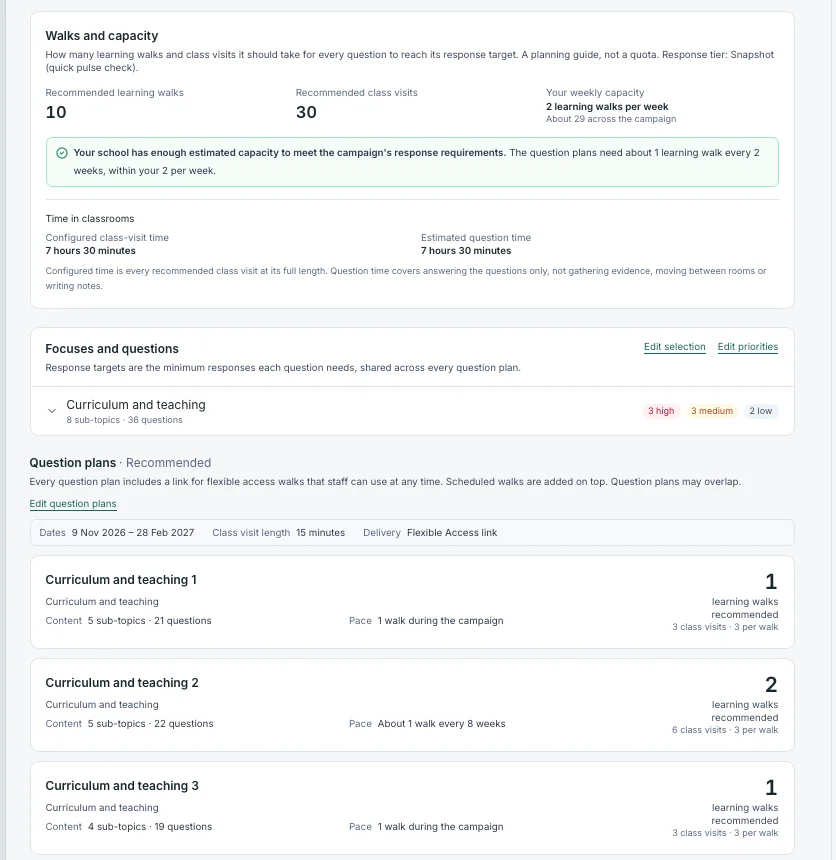
Expand the Focuses and Questions section to review the Sub-topics and questions included in your Campaign.
You can see the questions that have been selected, their priority levels and the number of responses required to meet their targets.
This helps you check that your chosen areas are covered and that your plans reflect your intended priorities.
You can also return to Edit Selection or Edit Priorities if you need to make changes.
Review your Question Plans
Below the Focuses and Questions section, you'll find a summary of your Question Plans.
Each plan shows its selected content, recommended number of Learning Walks and Classroom Visits, and suggested delivery pace.
Select Edit Question Plans if you need to make further adjustments.
Any suggestions for improving your Campaign's planning or coverage will also be highlighted, allowing you to review them before launching.
Launch your Campaign
Once you're happy with your settings, check the Ready to Launch summary on the right-hand side of the page.
This confirms that your Campaign details, question coverage, Question Plans and Evidence Assurance settings are ready.
Select Launch Campaign to complete the setup.
After launching, you can share Flexible Access Links, organise Scheduled Learning Walks and begin collecting evidence across your Campaign.