How Capacity Planning works v2
Capacity Planning is an optional campaign setting that estimates how many learning walks your school can complete before the campaign ends. LearningWalks compares that estimate with the number of walks recommended to meet your response targets.
Turn on Capacity Planning
- From Home, select Create campaign. In Campaign Basics, enter your campaign dates and tick Capacity Planning under Planning defaults.
- Enter Learning walks per week. Use a realistic total for the whole school across all staff and question plans.
- Enter Expected class visits per walk. This is the typical number of classrooms staff visit during one walk.
- Check Available weeks and Estimated campaign capacity, then select Continue.
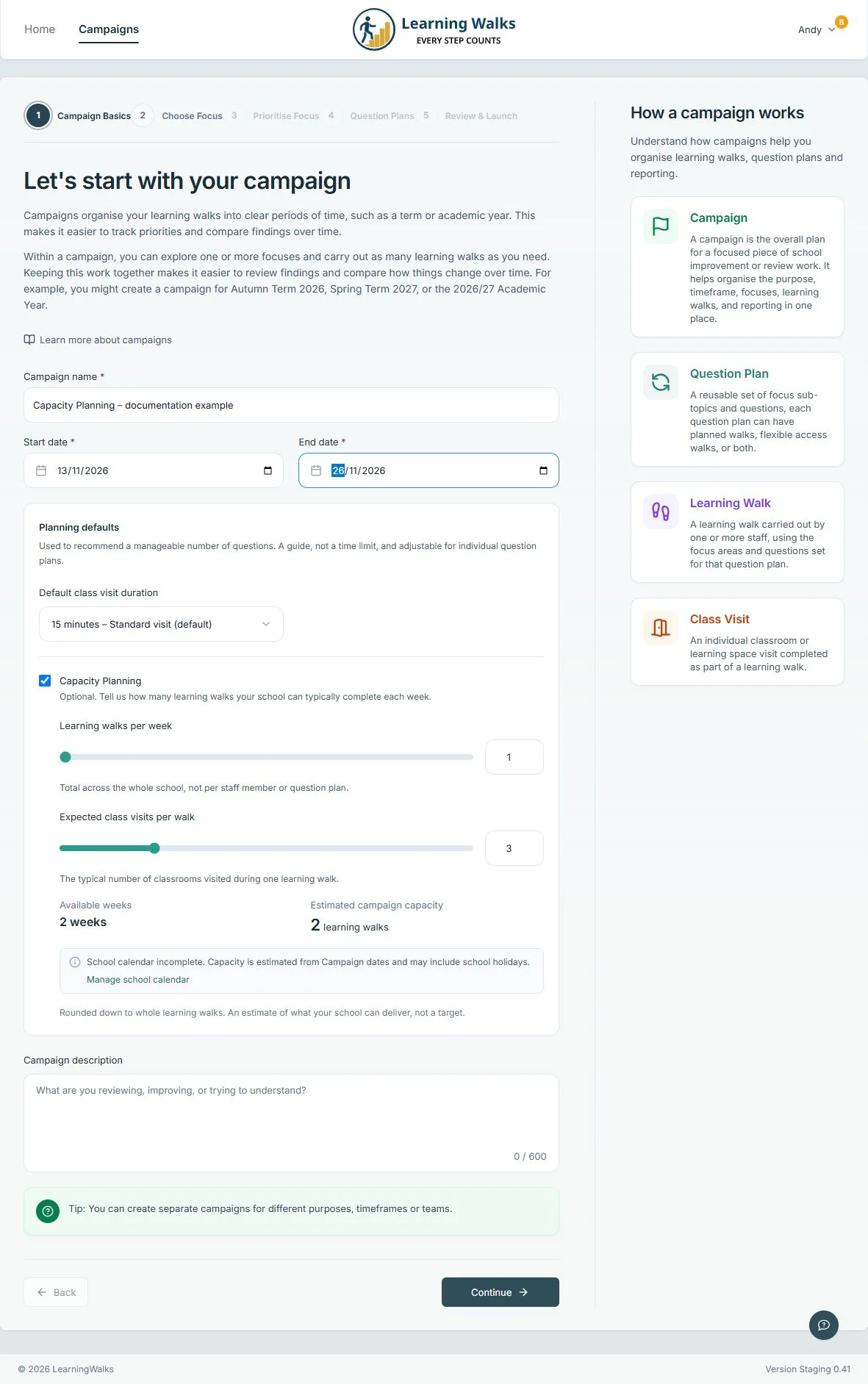
LearningWalks uses the available weeks and your weekly pace to estimate campaign capacity, rounding down to whole walks. If you see School calendar incomplete, the estimate uses the campaign dates and may include school holidays. Select Manage school calendar to review the calendar.
Check whether the workload fits
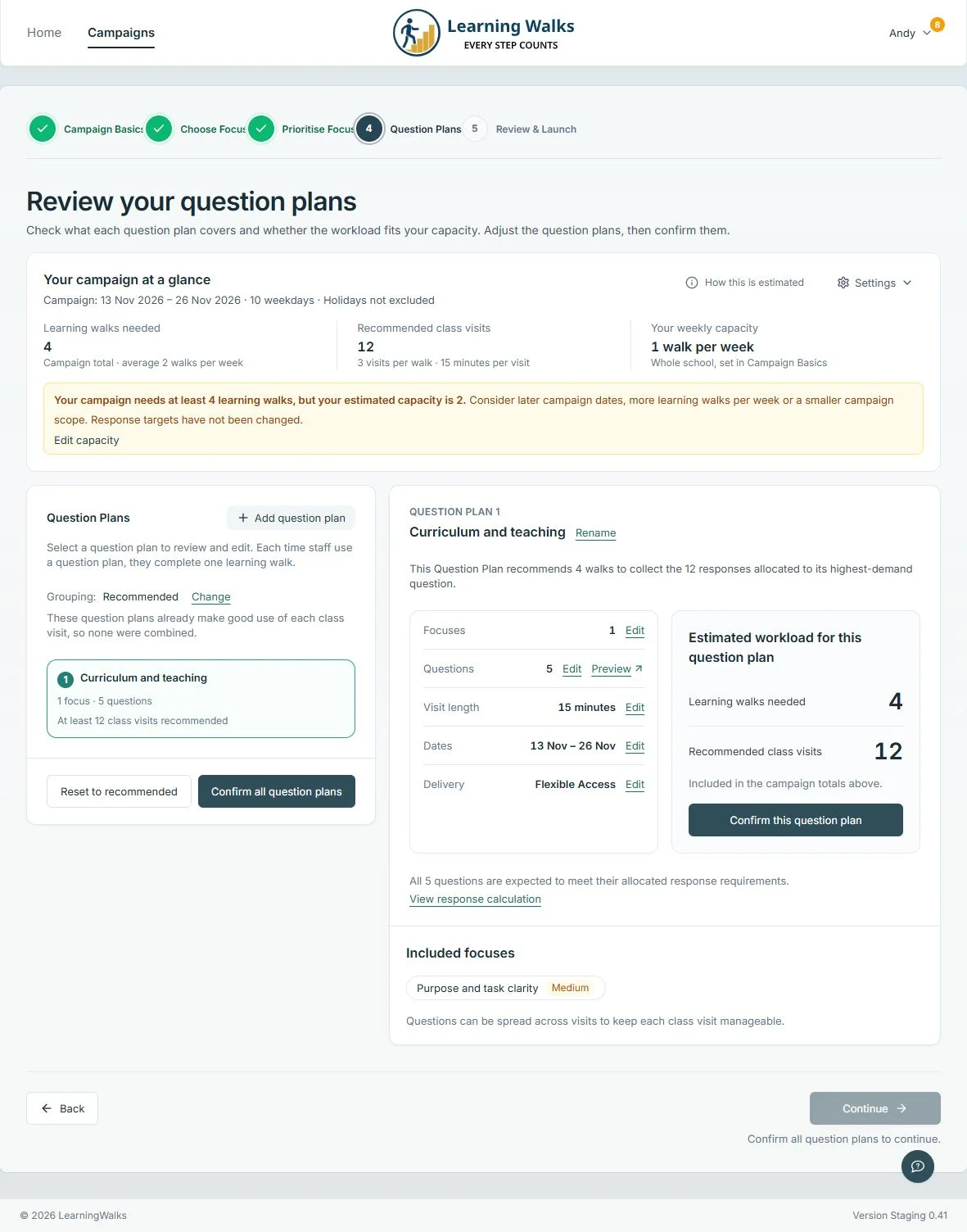
After selecting and prioritising your focus, open Question Plans. Under Your campaign at a glance, compare Learning walks needed with your weekly capacity. You can check the comparison again under Walks and capacity on Review & Launch.
For example, at one walk per week over two available weeks, your estimated capacity is two walks. If the plan recommends 12 class visits at three visits per walk, it needs four walks. LearningWalks flags the shortfall and keeps your response targets as set. You can still launch the campaign.
Adjust a plan that exceeds capacity
Use Edit capacity in Question Plans or Edit capacity settings on Review & Launch. Consider extending the campaign, increasing the weekly number of walks if staff can manage it, or narrowing the campaign scope. Then check the updated workload before launching.