How to complete and submit a learning walk V2
This guide explains how to access, complete and submit a Learning Walk, including how to answer questions, capture evidence and complete your Classroom Visits.
1. Access your Learning Walk
You'll usually receive a link to your Question Plan by email or Microsoft Teams.
There are two common ways to access your Walk:
- Access Link: Opens the Question Plan in your browser. Depending on the link's security settings, you may be asked to enter your email address or complete a verification step.
- Magic Link: Sent directly to your email address, providing personalised access to your Question Plan.
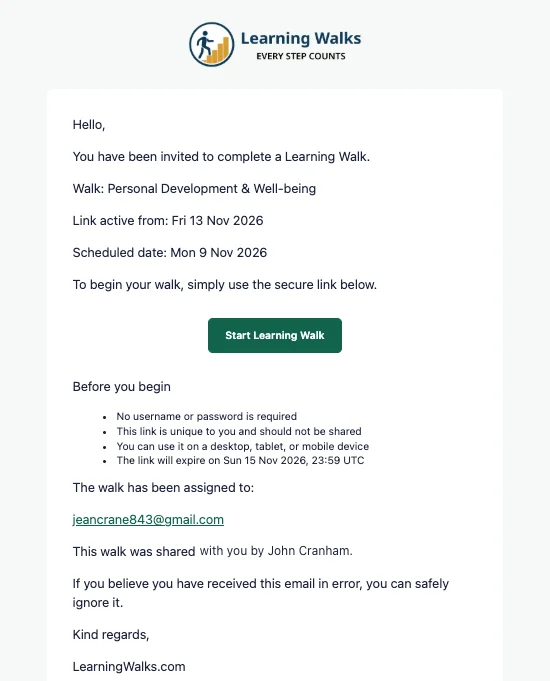
Once you've opened your link, you'll see the name of the Campaign and Question Plan.

2. Start your Walk
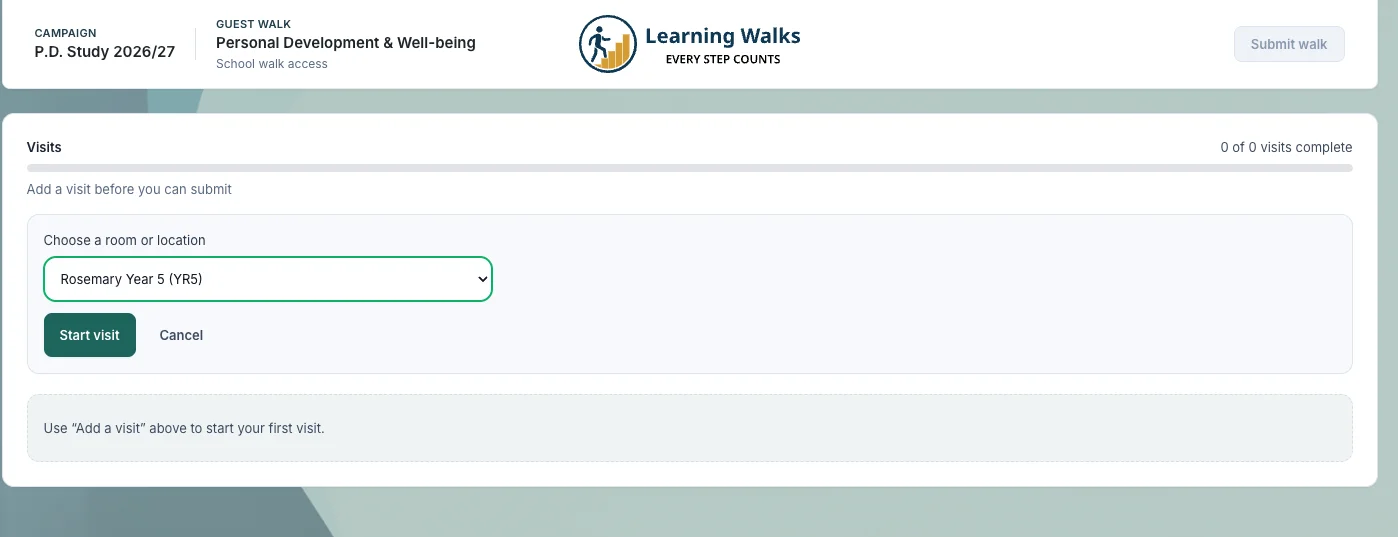
If prompted, select the classroom or location you're visiting.
Select Start Walk to begin.
3. Answer questions and capture evidence
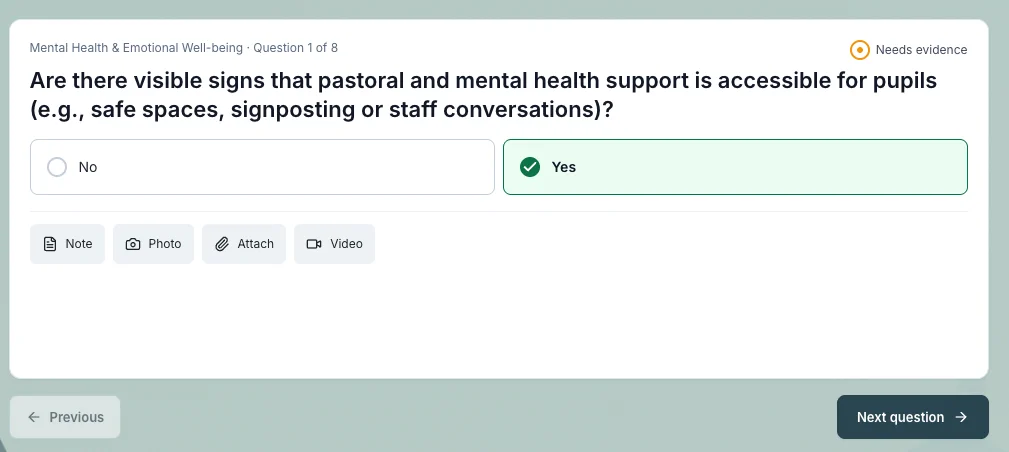
During each Classroom Visit, work through the questions provided in your Question Plan.
You can:
- Answer questions: Select the appropriate rating or response for each question.
- Add notes: Record relevant information to support your answers.
- Capture evidence: Add photographs or videos where useful.
- Add visit evidence: Capture additional supporting evidence for the Classroom Visit that isn't linked to a specific question.
Keep your evidence focused on the areas you're exploring. You don't need to capture everything happening in the classroom.
4. Complete your Classroom Visits
Once you've finished a Classroom Visit, you can move on to the next classroom or location and continue collecting evidence.
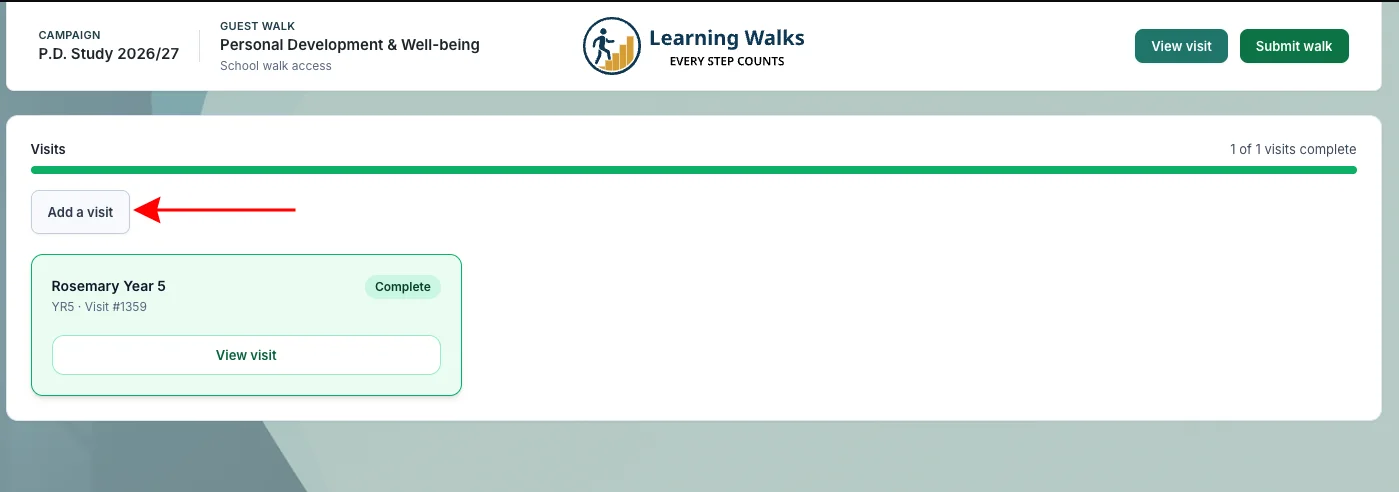
Each Classroom Visit contributes to your Learning Walk, allowing you to gather evidence across multiple classrooms using the same Question Plan.
5. Review and submit your Walk
When you've finished your visits, review your answers and supporting evidence to make sure everything is complete.
Ensure you've answered any required questions before submitting.
Once you're happy, select Submit Walk to finish.
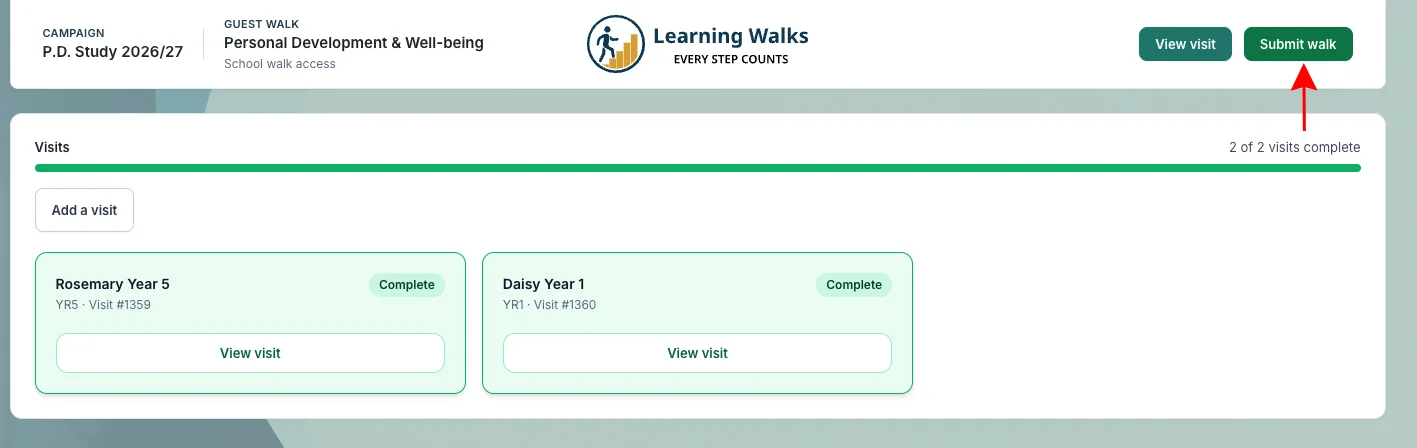
Your submitted evidence will be available for review and reporting according to the Campaign's Evidence Assurance settings.
What happens next?
Once submitted, your Walk contributes to the wider Campaign, helping school leaders review evidence, explore patterns and identify areas for improvement.
Depending on the Campaign's settings, submitted evidence may be accepted automatically or require review before being included in reporting.