How to manage access links after launch
Once your Campaign has been launched, you can manage how Walkers access your Question Plans, including sharing links, sending Magic Links and adjusting Access Link security settings.
Accessing your Question Plan links
- Open Campaigns and select the Campaign you want to manage.
- Go to the Question Plans tab.
- Find the relevant Question Plan.
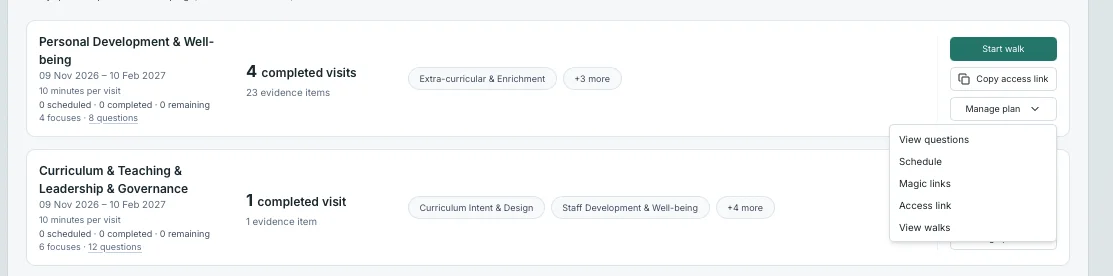
Each Question Plan has a Copy Access Link button and a Manage Plan dropdown containing several options.
Sharing an Access Link
An Access Link is a reusable link that allows multiple Walkers to access the same Question Plan during its active dates.
To share one, select Copy Access Link beside the relevant Question Plan and paste it into an email, Microsoft Teams message or another communication channel.
Alternatively, select Manage Plan → Access Link to display the link, its current status, active dates and validation method.
From here, you can copy the link or select Manage Link for further options.
Sending a Magic Link
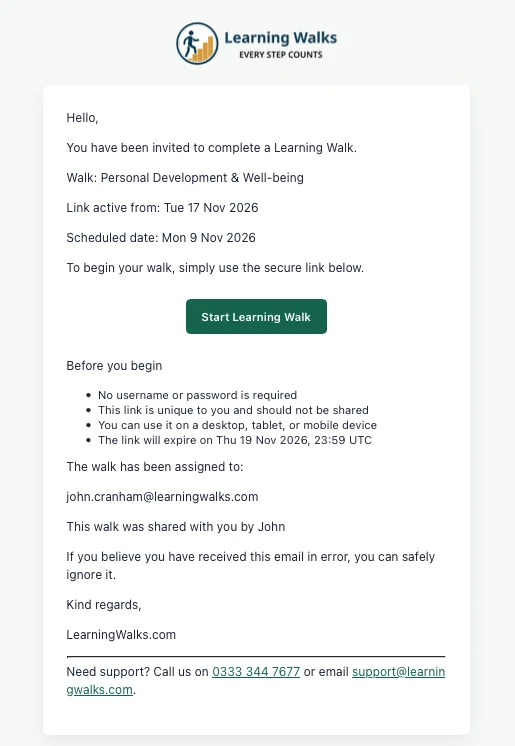
A Magic Link provides personalised access to a Question Plan for a specific recipient, until a specified expiry date.
To send one:
- Select Manage Plan → Magic Links.
- Enter the recipient's email address.
- Choose the Valid Until date.
- Select Send.
The recipient will receive an email containing their Magic Link, which they can use to access the Question Plan.
Managing Access Link settings
For additional settings, select Manage Plan → Access Link, followed by Manage Link.
This opens the Access Link management page, where you can:
- Disable or regenerate the link: Control whether the existing link can be used or replace it with a new one.
- Change the validation method: Choose how visitors identify or verify themselves before accessing the Question Plan.
- Check link usage: See how many Walks have been created through the link and when it was last used.
- View link history: Review previously created links.
- View audit history: See recorded activity, including when the link was opened and when Walks were started.
Regenerating an Access Link replaces the previous link, so you'll need to share the new link with anyone who requires access.
Managing links across your organisation
Administrators can also use the Access Links area within Organisation Setup to manage links across all Campaigns.
Here, you can set the default validation method for new Access Links, view and manage individual Question Plan Links, and review the status and expiry dates of Magic Links, including revoking those that are still active.
Changes to the default validation method apply to new Access Links unless you choose to update existing links as well.
Sharing links throughout your Campaign
You can continue sharing Access Links and sending Magic Links throughout your Campaign, allowing additional Walkers to contribute evidence as needed.
Remember that access is subject to the Question Plan's active dates, link expiry where applicable, and any validation requirements you've configured.