Quick start for campaign owners (v2)
This guide shows you how to set up and launch your first campaign using the recommended settings. LearningWalks suggests question plans based on your chosen focuses and priorities. If you need more control, you can adjust the planning settings, edit or build question plans, and choose how walks are delivered and how evidence is reviewed.
A campaign brings together learning walks for a set period, such as a term, around the teaching and learning priorities you want to explore. A question plan is a reusable set of questions that staff use to carry out a learning walk.
1. Set the campaign basics
On Home, select Create campaign. Enter a Campaign name, Start date and End date. The default class visit is 15 minutes. You can change it to help the app recommend a manageable number of questions. Add a description or enable Capacity Planning if you want to record how many walks your school can typically complete each week. Select Continue.
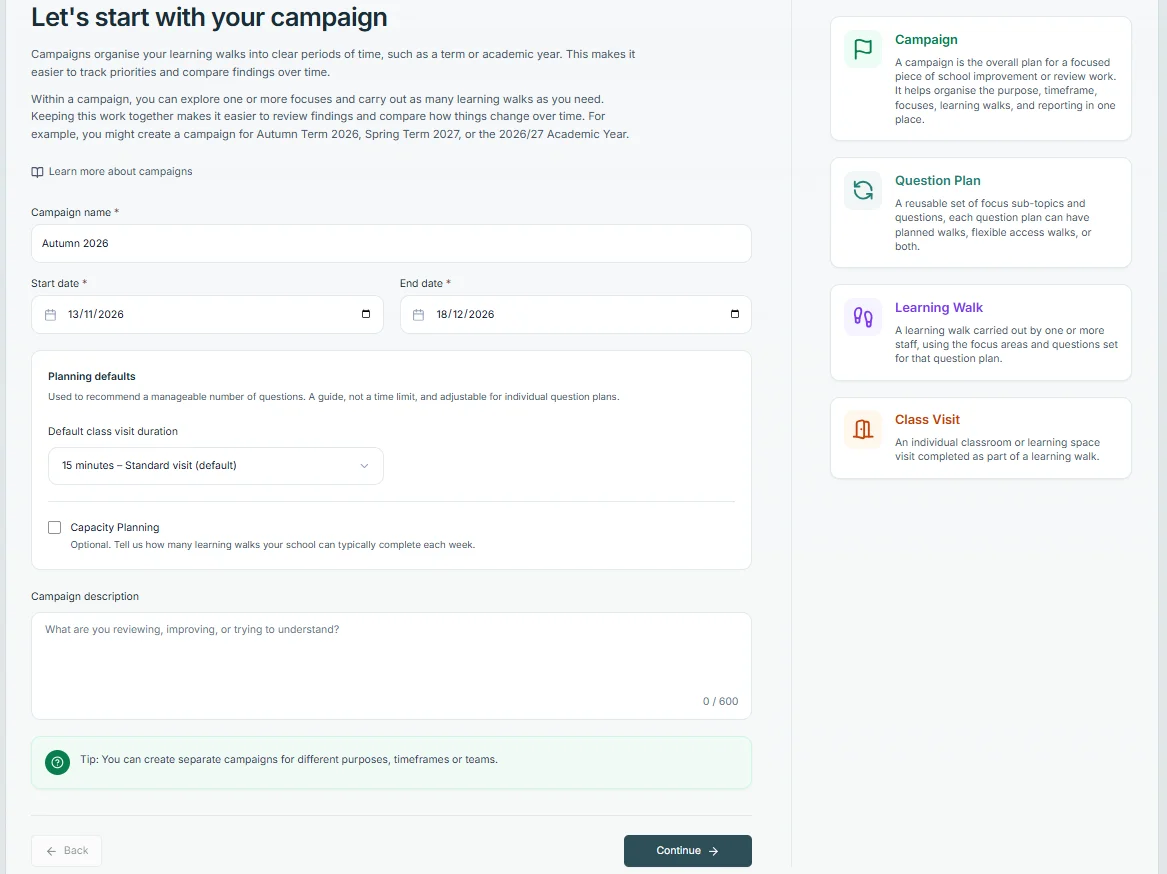
2. Choose what staff will focus on
Select Choose manually to browse focus areas. A focus area is a broad theme, such as curriculum and teaching. Each contains sub-topics, such as purpose and task clarity. Select a sub-topic to include its questions, or pick individual questions. Use Choose Question Library if you want to change which libraries you browse. You can also Upload a document for suggested focuses or Use a previous campaign as a starting point. Check the selected sub-topics and question counts under Your campaign focus, then select Continue to prioritise focus.
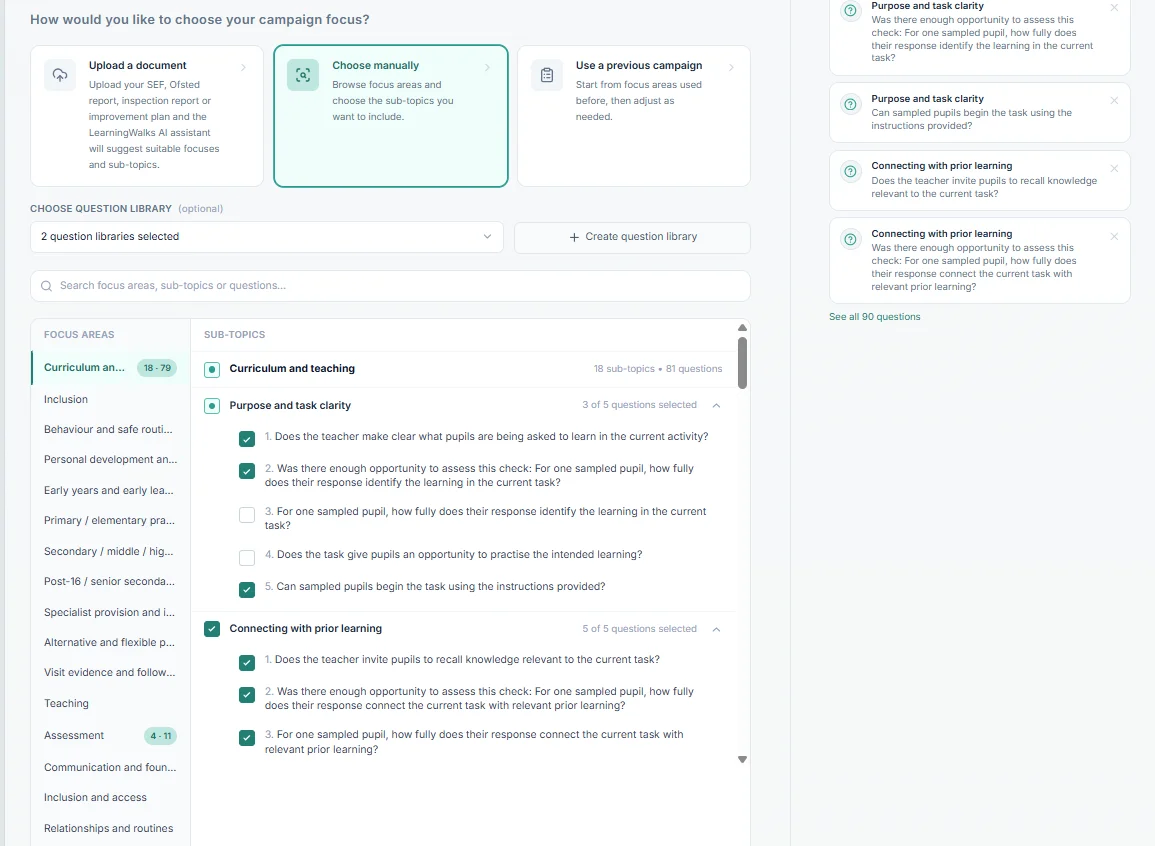
3. Set priorities
Selected sub-topics start at Medium. Drag a sub-topic to High to include it in more question plans or Low to include it in fewer. Select Continue to question plan.
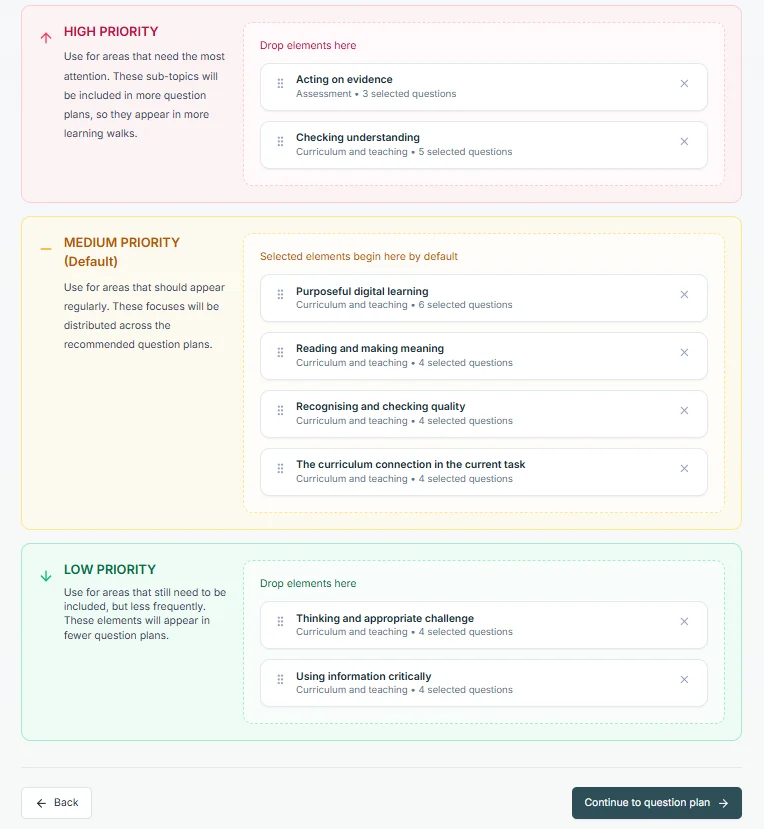
4. Review and confirm the question plans
Keep Recommended grouping for the quick start. Check the estimated walks and class visits under Your campaign at a glance, then open each plan to review its questions, visit length, dates and delivery.
Select Confirm all question plans, then Continue. You can also confirm plans individually as you review them.
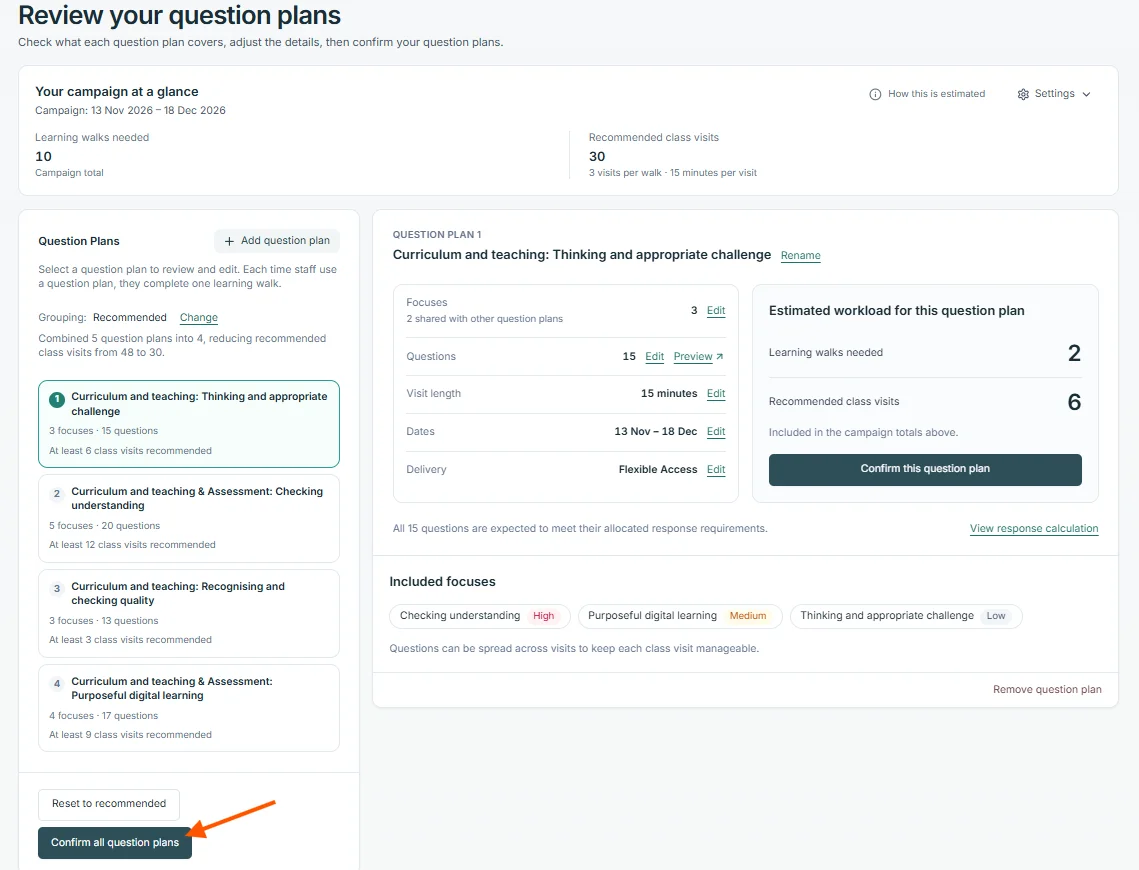
5. Choose evidence assurance and launch
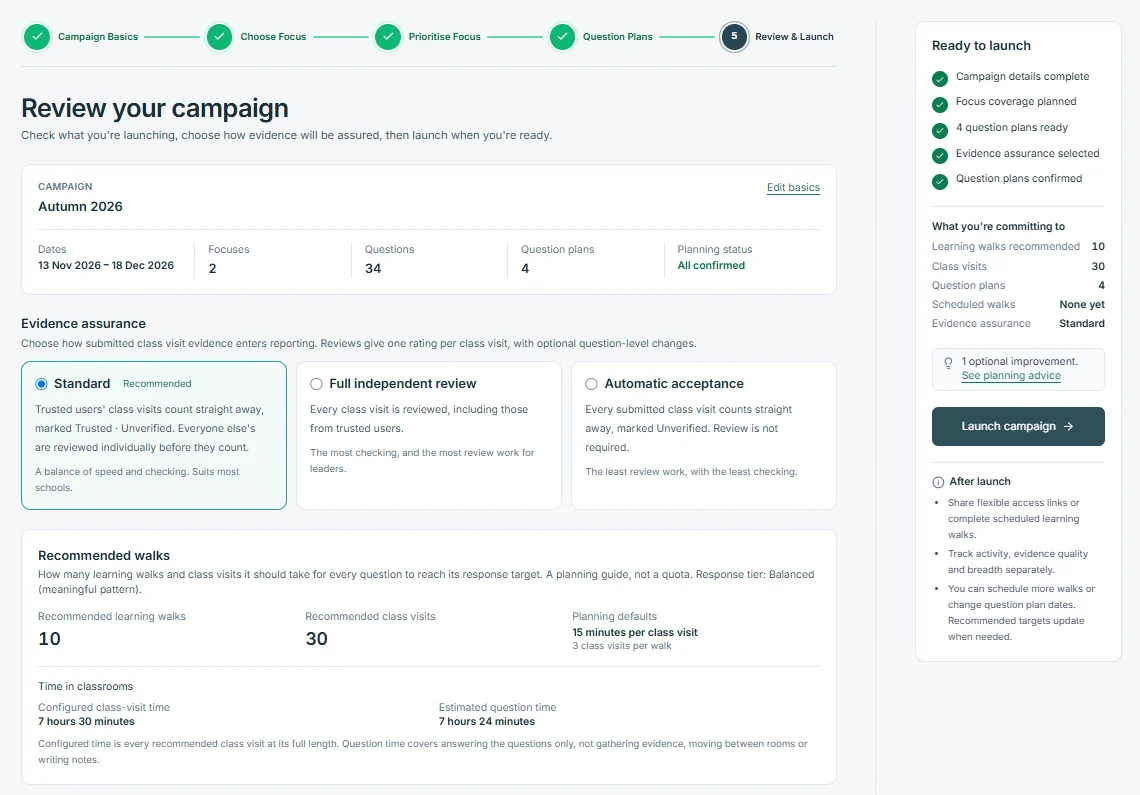
Review the campaign summary. Keep Standard for the recommended setup, or choose the evidence assurance option that fits how your school reviews class visits.
- Standard is the recommended setting. Visits from trusted users count straight away and are marked Trusted · Unverified. Other visits count after review.
- Full independent review requires every class visit to be reviewed before it counts.
- Automatic acceptance counts every submitted class visit straight away and marks it Unverified.
Check the Ready to launch panel, then select Launch campaign. The recommended numbers of walks and visits are planning estimates.
After launch
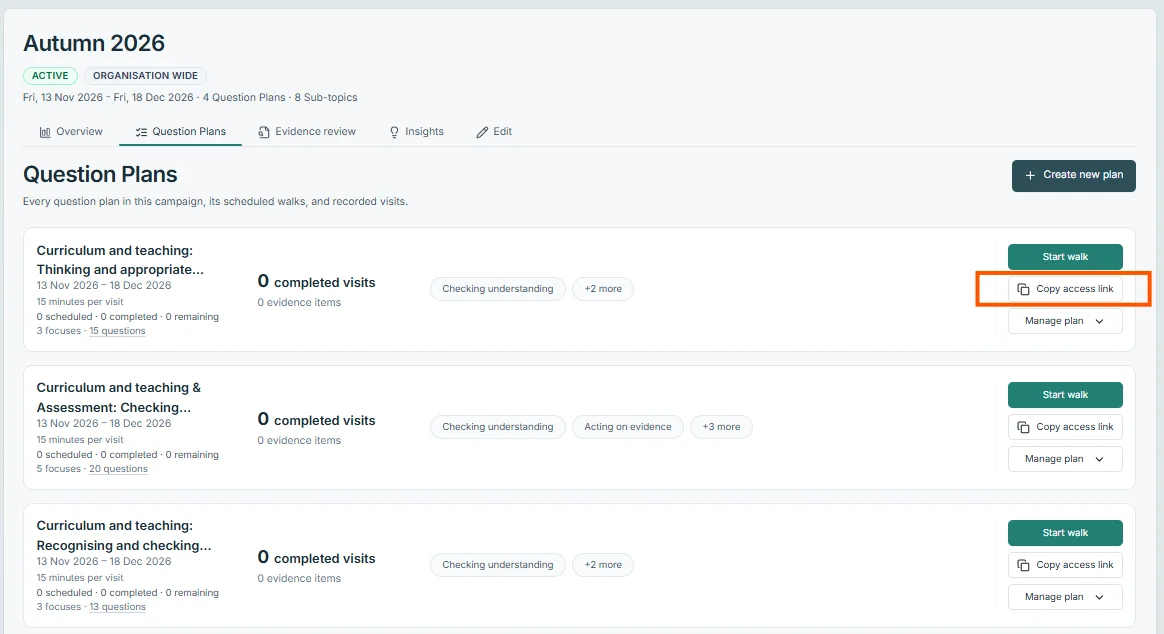
Get staff started. Share the question plan’s flexible access link, for example in email or Teams, or schedule walks in advance. During a class visit, staff answer the plan’s questions and add supporting evidence before submitting their work.
Review progress and findings. Use the Campaign Dashboard to see activity and coverage. Use Campaign Insights to explore responses and spot gaps, or Insights for a view across campaigns. Submitted class visits enter reporting according to the evidence assurance setting you chose.