Quick Start for Walkers (v2)
Use this guide to complete a learning walk from a shared access link. Your campaign owner sets up the campaign and question plan before sharing the link.
1. Open your walk
Open the access link from your email or Teams message. If asked, enter your email address and complete verification. Check the Campaign and Walk names at the top of the page.
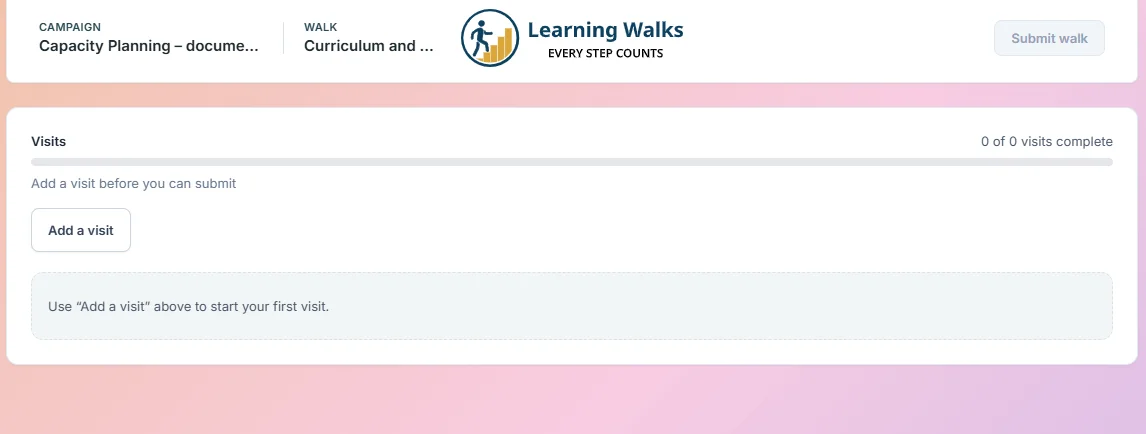
2. Add a class visit
Select Add a visit. Under Choose a room or location, pick the room you’re visiting or select Other / room not listed. Select Start visit.
3. Answer the questions and add evidence
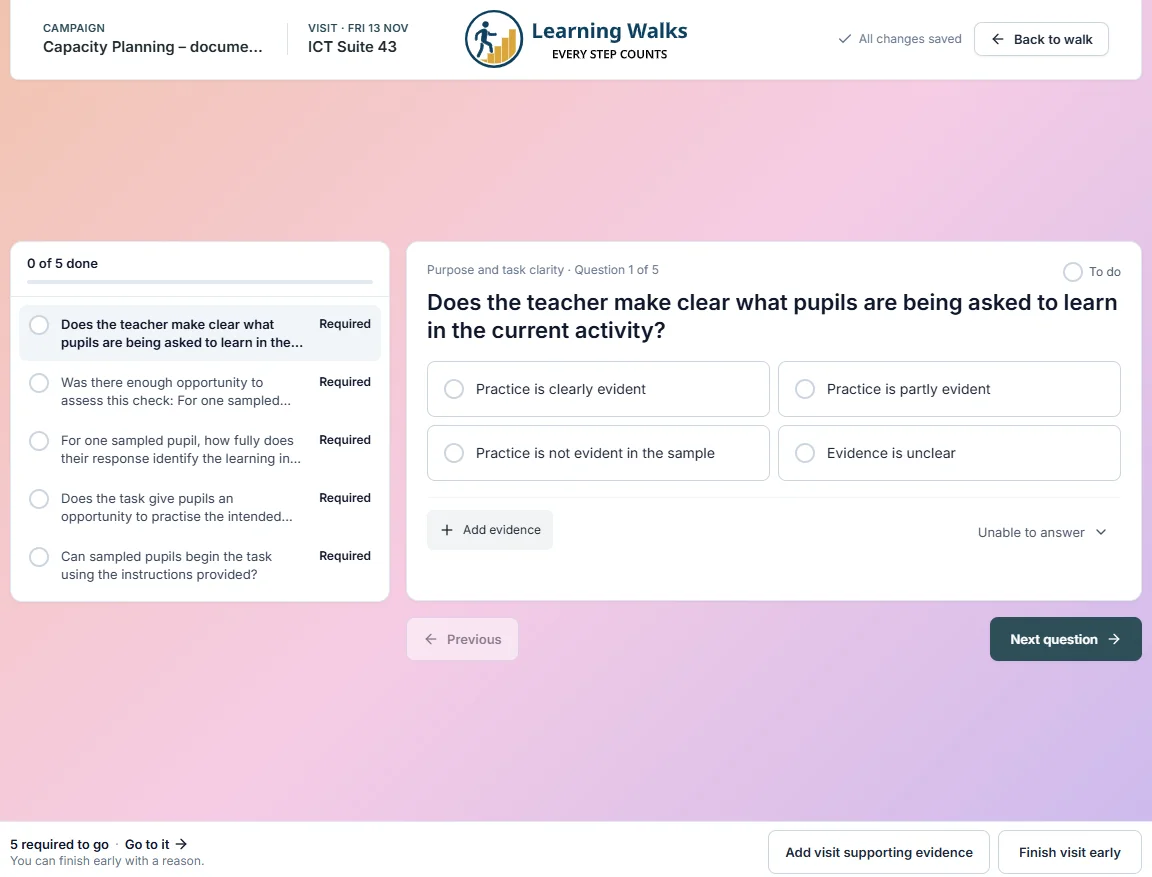
- Choose a response, then select Next question or pick another question from the Questions list. Check the progress counter for required questions still to answer.
- To attach evidence to a question, answer it first, then select Add evidence. Use Add visit supporting evidence for evidence about the visit as a whole.
- If you can’t answer a question, use Unable to answer. If you need to end the visit before completing the required questions, select Finish visit early and give a reason.
4. Review and submit your walk
Once you’ve completed the visit, return to the walk overview. Use Add a visit for another room or Continue visit to return to an unfinished visit. Check the Visits progress and resolve any missing answers or evidence. When you’ve completed at least one visit and the overview shows your visits are complete, select Submit walk.
Submitted visits can be reviewed alongside other walks in the campaign.