User roles and permissions explained (v2)
Learning Walks uses different access levels to control what registered users can see and do within the platform.
The two main roles are Administrator and Walker.
Administrator
Administrators have full access to the platform, including the ability to:
- Create, launch and manage Campaigns and Question Plans.
- Manage users and organisation settings.
- Configure Question Libraries and other setup options.
- Access Learning Walks, evidence, dashboards and reporting tools.
Walker
Walkers have access to the parts of Learning Walks needed to carry out their visits and review findings, without administrative permissions.
They can:
- Access their available Learning Walks and Classroom Visits.
- Answer questions and capture supporting evidence.
- Complete and submit Walks.
- Access the Insights tab to explore findings and reporting.
Walkers cannot create or manage Campaigns, change organisation settings or access administrative functions.
Trusted Users
Learning Walks also includes a Trusted User setting, which is separate from a user's role.
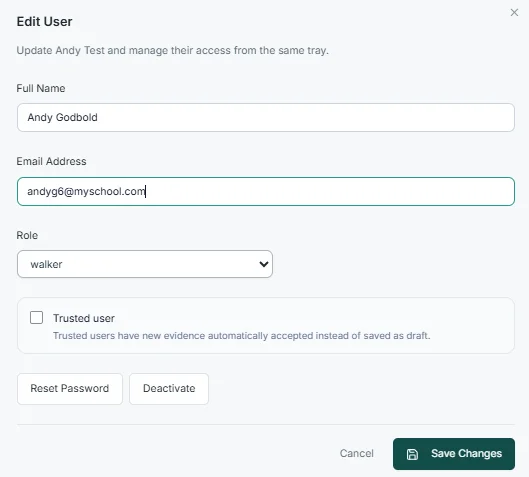
Both Administrators and Walkers can be marked as trusted or untrusted using the Trusted User checkbox when creating or editing their account.
When Standard Evidence Assurance is selected for a Campaign, evidence submitted by trusted users is automatically accepted into reporting. Evidence from untrusted users requires review before being included.
Managing permissions
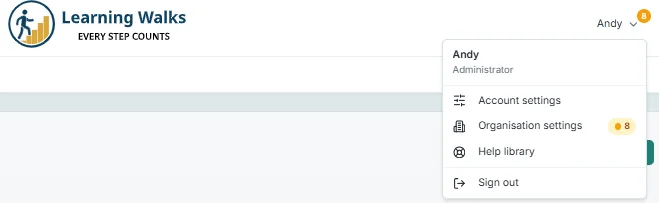
Administrators can manage registered users through the User Management area of the platform, where they can assign roles and update Trusted User settings. From your profile select Organisation settings and Add Users. Choose the Edit User action.
This helps ensure that users have access to the features they need, while Campaign setup and organisation management remain restricted to administrators.