Campaign Creation - 4 - Create Question Plan (V2)
Once you've prioritised your Focus Areas, you'll move to the Review Your Question Plans screen.
Learning Walks automatically organises your selected questions into Question Plans, taking into account your priorities, available time and Campaign settings.
You can review these plans and make adjustments before continuing.
At the top of the page, you'll see an overview of your Campaign's estimated workload, including:
- Learning Walks needed: The estimated number of Walks required to complete your Campaign.
- Recommended Class Visits: The number of Classroom Visits recommended to collect sufficient responses.
- Weekly Capacity: The number of Walks your school can realistically complete each week, based on your planning settings.
Learning Walks will indicate whether your planned activity fits within your available capacity.
You can select Edit Capacity if you need to adjust your planning assumptions.
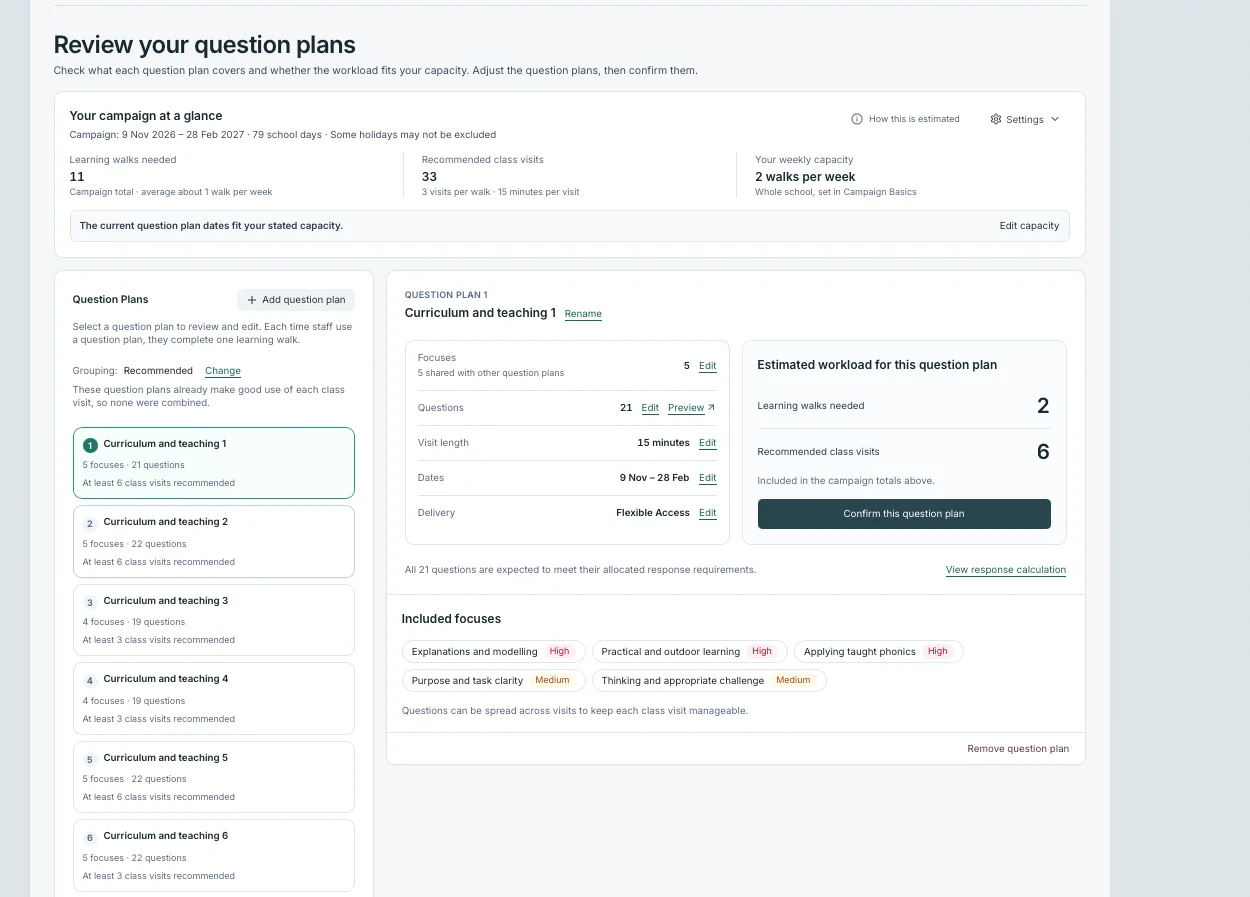
Review your Question Plans
Your suggested Question Plans appear in a list on the left-hand side of the page.
Select a Question Plan to view its details, including the Focus Areas, Sub-topics, questions and estimated workload.
You can review or adjust:
- Plan name: Rename the Question Plan.
- Focuses: Change which of your selected Sub-topics are included.
- Questions: Review, edit or preview the questions.
- Visit length: Adjust the time allocated to each Classroom Visit.
- Dates: Change the Question Plan's start and end dates.
- Delivery: Choose between Flexible Access and Scheduled Learning Walks.
You can also add or remove Question Plans as needed.
Check the estimated workload
Each Question Plan includes an estimated workload showing:
- Learning Walks needed: The number of Walks recommended for that Question Plan.
- Recommended Class Visits: The number of visits needed to provide sufficient coverage of the selected questions.
These estimates help you decide whether your plans are manageable within the time and capacity available.
You can make further adjustments to individual Question Plans if needed.
Adjust your Campaign settings if needed
Select the Settings icon at the top of the page to review or adjust your planning options.
Campaign Target
Choose how thoroughly you want to explore your selected questions:
- Snapshot: A quicker overview, requiring fewer Classroom Visits.
- Balanced: A middle ground between coverage and the time available.
- Deep: A more detailed picture, requiring more visits and responses.
Your choice affects the recommended number of Classroom Visits and Learning Walks needed.
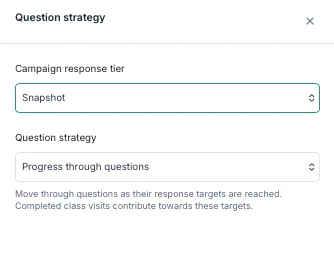
Question Strategy
Choose how questions are used across Classroom Visits:
- Rotate questions: Progress through questions as their response targets are reached, helping you cover a wider range of questions over time.
- Repeat questions: Use the same questions during each visit, allowing you to gather repeated responses to those questions.
Campaign Defaults
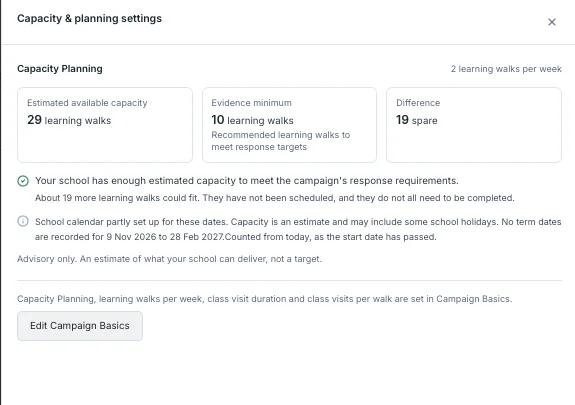
You can also return to your Campaign Basics to adjust your capacity settings, including the number of Learning Walks and Classroom Visits your school expects to complete each week.
This can be useful if your estimated workload is higher than your available capacity.
You can also change the grouping of your Question Plans using the Change option in the Question Plans list.
There are four arrangements available:
- Recommended: Learning Walks organises your selected Elements into manageable Question Plans, combining them where appropriate to make efficient use of Classroom Visits.
- By Focus: Creates separate Question Plans for each Focus Area.
- By Team: Creates a Question Plan for each team, with all selected Elements included.
- One Shared Question Plan: Combines all selected Elements into a single Question Plan.
You can also select Add Question Plan to create an additional plan and choose its Focus Areas and Elements manually.
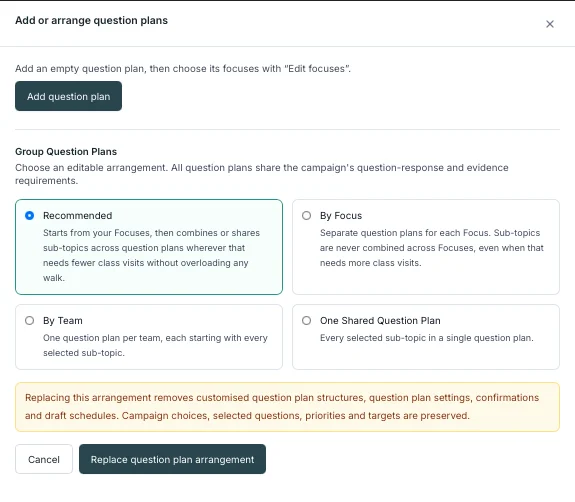
Important: Changing the arrangement replaces your existing Question Plan structures, including any customisations, settings, confirmations and draft schedules. Your Campaign selections, priorities and response targets are preserved.
Confirm your Question Plans
Once you're happy with a Question Plan, select Confirm This Question Plan.
Review and confirm each of your Question Plans before continuing to the final Review & Launch stage.
This ensures your plans are ready, your questions are organised and your estimated workload is manageable before launching your Campaign.
Click below for the Final Step - Review and Launch
https://service.learningwalks.com/p/campaign-creation-5-review-and-launch-EL0eKl